A 1‑hour MacWhisper clone (offline, privacy-first) using Script Kit + whisper.cpp
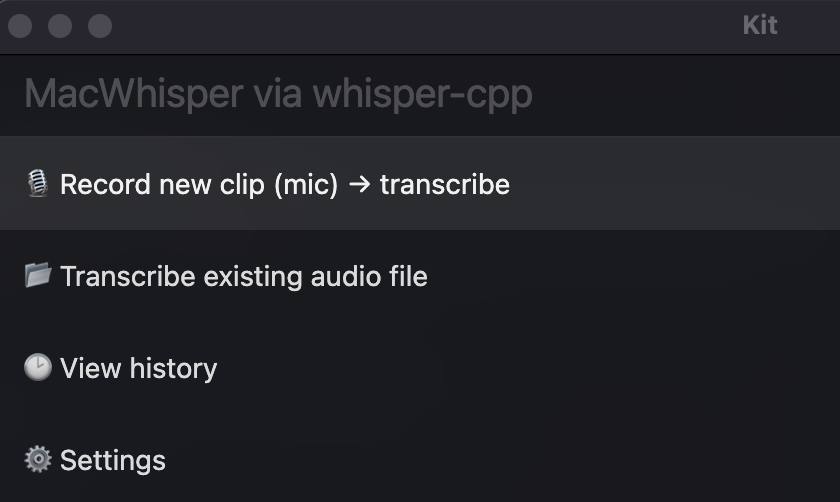
I wanted a frictionless way to talk to my Mac and paste the transcript straight into ChatGPT—without paying per minute, sending audio to a cloud API, or building a full desktop app.
The interesting part isn’t that “speech-to-text is possible.” It’s that with modern coding agents, copying the shape of a popular tool is now a ~1-hour project if you keep the scope tight.
This post is a quick breakdown of how I cloned the core MacWhisper workflow using Codex plus a couple of boring-but-powerful building blocks:
-
whisper.cpp (via
whisper-cli) for fast, local speech-to-text -
Script Kit for instant UI prompts, mic recording, editor output, and shell access
The result: a command I can trigger anywhere, record a clip, and get text in my clipboard.
The 1‑hour clone workflow (Codex + a plan first)
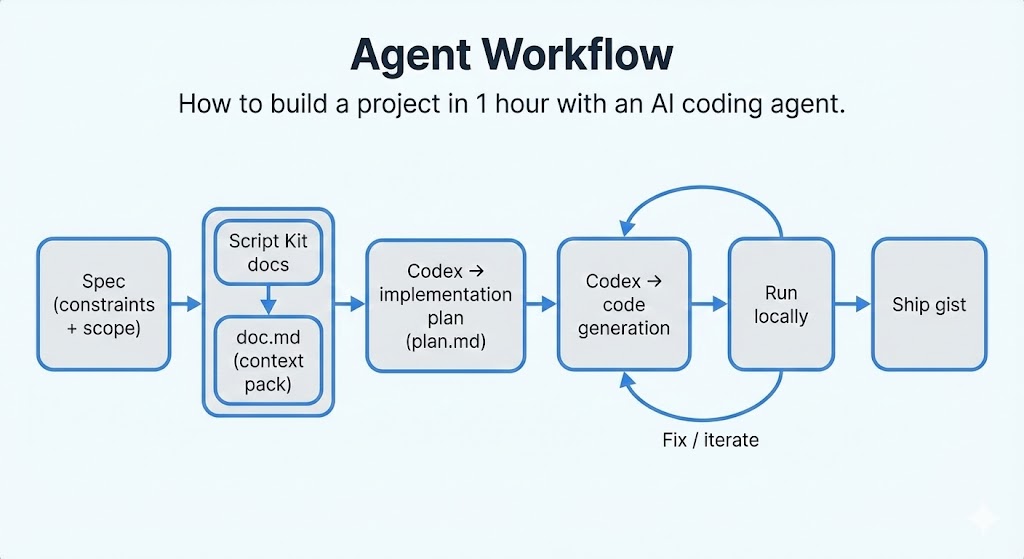
The thing that made this fast wasn’t “typing quickly”—it was (1) starting with an implementation plan, and (2) giving Codex the right context so it could use Script Kit correctly without guessing APIs.
1. I built a tiny “context pack” for Codex
Script Kit is powerful, but it’s also opinionated: lots of globals, lots of helpers, specific patterns. To avoid back-and-forth and hallucinated APIs, I prepared a single markdown file:
doc.md— A full documentation download from here.
That way Codex had a local reference for what Script Kit offers and how scripts should be structured.
2. Write a tight spec (1–2 paragraphs)
My spec was basically:
-
offline, privacy-first, cheap
-
record audio OR pick a file
-
transcribe via
whisper-cpp -
show transcript + copy to clipboard
-
keep history + settings
-
keep code small (a runtime module + one launcher script)
3. Ask Codex for an implementation plan
Then I asked Codex to produce a plan that:
-
breaks the work into steps (setup dirs/config, audio pipeline, whisper invocation, UI flows)
-
lists dependencies and failure modes (missing model, missing
whisper-cli, missing ffmpeg, mic permission) -
defines file layout
# Plan: MacWhisper-style transcription in ScriptKit

## Objective
- Record audio inside ScriptKit, transcribe it, and surface the text in a ScriptKit prompt using built-in helpers where possible.
- Keep a smooth MacWhisper-like loop: capture ➜ confirm ➜ transcribe ➜ review/save.

## Steps
1) Script scaffold
   - Create a script (e.g., `scripts/macwhisper.ts`) with `import "@johnlindquist/kit"`.
   - Add `metadata` for name/alias/shortcut so it’s easily launched; set `log` true for debugging.
   - Keep all non-script assets/helpers/history under `lib/macwhisper` (e.g., `lib/macwhisper/data`, `lib/macwhisper/logs`, `lib/macwhisper/models`); only the launcher script lives in `scripts/`.
   - Check for `whisper-cli` (Homebrew whisper-cpp) on PATH; fallback to `lib/macwhisper/build/bin/whisper-cli` if present; show a `div/md` guide to install/build if missing.
   - Ensure a default model path (e.g., `lib/macwhisper/models/ggml-medium-q5_0.bin`); if missing, offer to run `lib/macwhisper/download-ggml-model.sh` via `exec` and show progress with `div/onInit`.

2) Input mode prompt
   - Use `arg` to choose: `Record new clip (mic)`, `Transcribe existing file`, `View history/settings`.
   - For settings, use `form`/`arg` to let the user set defaults (language, model string, translation flag, destination folder) and store them in a small JSON under `kitPath("lib/macwhisper/data", ...)`.

3) Recording flow (built-ins)
   - Call `await mic()` to capture audio; optionally wrap with a quick `arg` for max duration choice.
   - Save buffer to `tmpPath("capture.webm")` (or `.wav` if available from `mic`) via `writeFile`; use `playAudioFile` for optional playback confirmation.
   - Use `notify`/`setStatus` to show capture completion; `revealFile` if the user wants to inspect the raw clip. Prefer formats whisper-cpp already handles (wav/mp3/ogg); if unsupported, prompt the user to re-record in a supported format instead of shelling out to ffmpeg.

4) Existing file ingestion
   - Offer `find`/`path`/`chooseFile` to pick an audio file; duplicate to a temp path to avoid mutating originals.
   - Accept whisper-cpp-friendly formats (wav/mp3/flac/ogg). If an unsupported format is chosen, show guidance to provide a supported file or re-record, avoiding external converters like ffmpeg.

5) Transcription engine (whisper-cpp)
   - Build the `whisper-cli` command: `whisper-cli -m <model> -f <audio> -osrt -of <tmp base> --language <lang?> --translate` etc.; store stdout/stderr to a log in `kitPath("lib/macwhisper/logs")`.
   - Run via `exec` with `{shell: "/bin/zsh", all: true}` and show progress with `div`/`setStatus`; surface errors nicely if the model is missing or the CLI fails.
   - Parse the resulting `.txt` (or `.srt`) from the temp base; also capture timing/info from logs for display/history.

6) Display + actions in ScriptKit
   - Show the transcript in `editor` or `textarea` so the user can edit; also present a quick `div(md(...))` summary (duration, model, language, source path).
   - Offer actions via `arg`/buttons: copy to clipboard, save via `writeFile` to a transcripts folder, append to an existing note, or re-run with a different model.
   - Auto-copy to clipboard on success and confirm with `notify`.

7) History and reuse
   - Persist transcripts + metadata in a small JSON/db under `kitPath("lib/macwhisper/data", "history.json")`.
   - Add a “View history” mode listing recent jobs via `arg`, allowing re-open in `editor` or re-send for translation.

8) Polish and UX
   - Add a global shortcut in `metadata` for quick capture; optionally expose a `shortcode` trigger.
   - Use `setPlaceholder`/`setDescription` for contextual prompts, and `beep`/`say` cues for start/stop capture.
   - Clean up temp files after successful transcription unless the user opts to keep them.

9) Verification
   - Smoke-test: short recording → transcript → copy/save flow.
   - Longer clip test to ensure progress messaging and temp cleanup work.
   - Test both “record new clip” and “existing file” paths; validate failures when the model file/whisper-cli are missing or mic permission is denied. Confirm unsupported audio formats prompt for a supported re-record/selection (no ffmpeg fallback).
4. Implement step-by-step with Codex
From there it was a tight loop:
-
paste the next plan step
-
generate the code
-
run it locally
-
fix what breaks
-
repeat
Starting from a plan + giving the Script Kit docs in markdown is what kept this in the “1 hour” zone instead of becoming a multi-evening rabbit hole.
Why these two tools?
What is Script Kit (and why it’s perfect for PoCs)?
Script Kit is an open-source, cross-platform desktop app that lets you create and run automation scripts from a global launcher/prompt. The key idea: remove the friction of “just write a quick script.”
Why I used it here:
-
scripts are just TypeScript/JavaScript
-
you get “UI primitives” for free (
arg(),selectFile(),selectFolder()) -
built-in helpers like:
-
mic()for recording -
editor()for viewing/editing the transcript -
exec()for shell commands
-
-
it behaves like a command palette: scripts feel like quick commands, not projects
That combination is ideal when you want something that feels like an app but you only want to write ~100–200 lines of glue.
What is whisper.cpp?
whisper.cpp is a high-performance C/C++ port of OpenAI’s Whisper designed for on-device inference (no cloud dependency). In practice, it’s the easiest way to get reliable local STT on macOS.
Why it’s a good fit:
-
runs locally on Apple Silicon (I’m on an M1 Pro)
-
supports quantized models (Q5/Q8) to reduce RAM use
-
includes a CLI tool (
whisper-cli) that’s trivial to automate from scripts
Under the hood: the whole pipeline
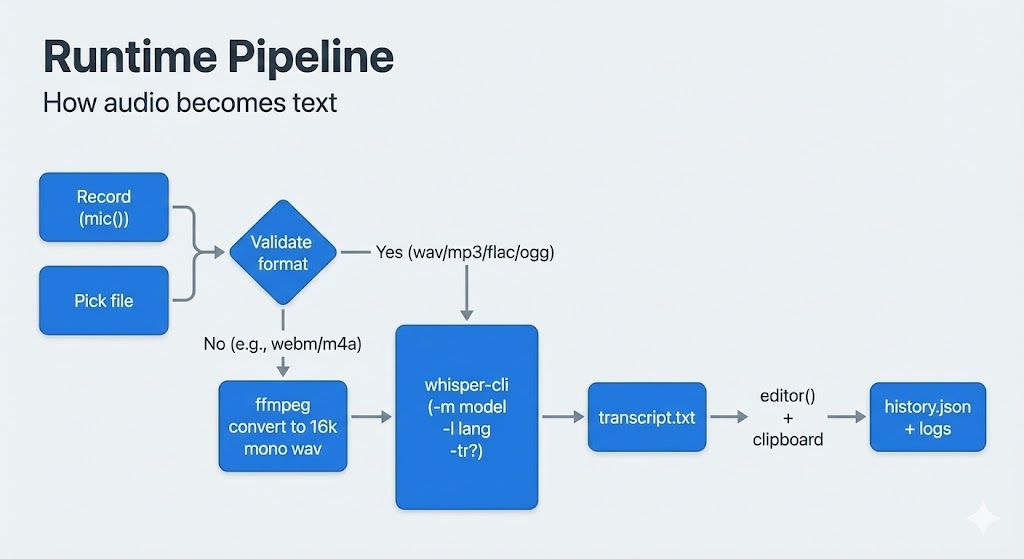
This tool is basically four steps:
-
Record audio
Script Kit’smic()returns a buffer. I save it to a temp file (on my machine it records aswebm). -
Normalize audio (if needed)
whisper-clisupportswav/mp3/flac/oggnatively.
For formats likewebmorm4a, I auto-convert using ffmpeg to:-
16 kHz
-
mono
-
WAV
-
-
Transcribe with whisper-cli
I invokewhisper-cliwith:-
selected GGML model (default:
ggml-medium-q5_0.bin) -
language (
autoby default) -
optional translate mode
I default to GPU disabled (
-ng) to avoid Metal allocation failures. (You can experiment later by offloading layers.) -
-
Show output + save history
-
opens transcript in
editor() -
optionally copies to clipboard
-
stores outputs/logs/history under
~/.kenv/lib/macwhisper
-
Model choice (Medium is my default) + what the numbers look like
In whisper.cpp you typically run quantized GGML/GGUF models. Quantization is what makes local STT practical: you trade a tiny bit of accuracy for big wins in memory, disk size, and load time.
I default to Medium Q5_0 because it’s multilingual, high quality, and runs comfortably on most machines.
Approximate numbers (whisper.cpp 1.7+):
| Model | Quantization | Disk size | RAM | When to pick it |
|---|---|---|---|---|
| Medium F16 | fp16 | ~1.5 GB | ~2.6 GB | Max fidelity for Medium |
| Medium Q8_0 | 8-bit | ~785 MB | ~1.3–1.5 GB | Near-lossless “safe” choice |
| Medium Q5_0 | 5-bit | ~514 MB | ~1.0 GB | Best sweet spot (my default) |
| Small F16 | fp16 | ~466 MB | ~1.0 GB | Faster, but can lose context |
| Large-v3 F16 | fp16 | ~2.9 GB | ~4–5 GB | Best under heavy noise; heavy |
Medium vs Medium.en
If you only transcribe English, medium.en is slightly more accurate than the general multilingual medium. The gap is smaller than for tiny/base, but still noticeable. If you’re multilingual (or you want auto language detection), stick with regular medium.
Speed/accuracy tradeoffs (practical expectations)
-
Medium vs Small: Medium is typically 2–3× slower, but hallucinates less, handles punctuation better, and performs much better in rarer languages (e.g., Polish).
-
Medium vs Large: Medium is often ~2× faster than Large. On clean audio the difference can be small; Large wins with noise, accents, and difficult recordings.
New default contender: large-v3-turbo
A newer option worth knowing about is large-v3-turbo:
-
size roughly similar to Medium (~1.5 GB for F16)
-
speed close to Medium
-
quality close to full Large-v3
For many people it becomes the new “default”: large quality at roughly Medium cost.
Quantization rule of thumb (whisper.cpp)
-
Q5_0: the classic sweet spot—usually a marginal accuracy drop with a big win in memory + load time.
-
Q8_0: near-lossless vs FP16—use it if you have the RAM and want maximum confidence.
Practical recommendation
-
If you have plenty of RAM (say 4GB+ free for transcription sessions): consider
large-v3-turbo. -
If you want something lightweight that still performs extremely well:
ggml-medium-q5_0.binis hard to beat.
Quickstart
0. Install Script Kit
Get it from: https://www.scriptkit.com/
Once installed, you can run scripts from the launcher prompt and assign a global shortcut.
1. Install whisper.cpp (gives whisper-cli)
brew install whisper-cpp2. Install ffmpeg (recommended)
Needed for converting webm/m4a into WAV for whisper:
brew install ffmpeg3. Download a GGML model
Grab a model like ggml-medium-q5_0.bin. To download it use download-ggml-model.sh
Example:
$ ./download-ggml-model.sh base.en
Downloading ggml model base.en ...
models/ggml-base.en.bin          100%[=============================================>] 141.11M  5.41MB/s    in 22s
Done! Model 'base.en' saved in 'models/ggml-base.en.bin'
You can now use it like this:

  $ ./build/bin/whisper-cli -m models/ggml-base.en.bin -f samples/jfk.wav
4. Put the model here
~/.kenv/lib/macwhisper/models/ggml-medium-q5_0.bin5. Run
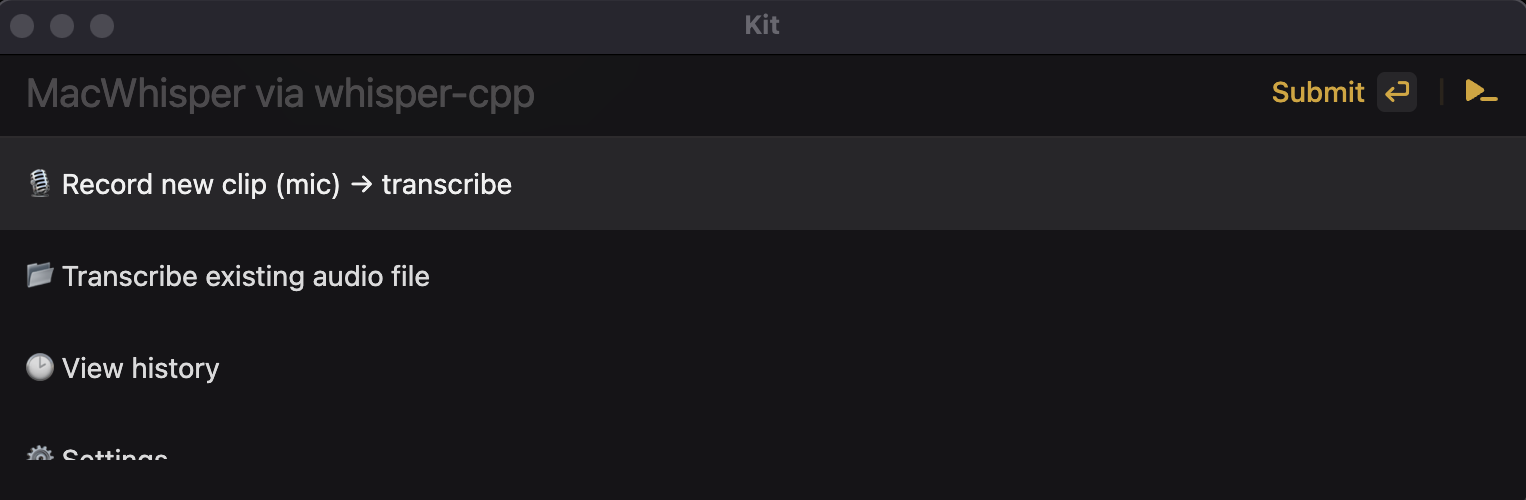
Launch Script Kit and run: MacWhisper
Source code (GitHub Gist)
I’m publishing the full source as a GitHub Gist (multi-file):
-
lib/macwhisper/runtime.ts— setup, history, ffmpeg conversion, whisper invocation -
lib/macwhisper/config.json— configuration (model path, defaults) -
scripts/macwhisper.ts— the Script Kit command, UI, and flows
Gist: https://gist.github.com/mgce/7418c97a8f555712d664188513fc3fab